
You open Outlook and, instead of your inbox, see the error “Outlook Data File Cannot Be Accessed.” Sometimes, Outlook also displays error code 0x8004010F. Suddenly, your emails, contacts, and calendar seem to be missing.
The good news is that your emails are often still safe. The Outlook Data File Cannot Be Accessed error usually means Outlook cannot locate, open, or read the PST or OST file associated with your profile.
In this guide, we’ll explain what causes this Outlook data file error and walk you through seven practical fixes, starting with the simplest solutions.
The Short Answer
Quick Fix: Outlook Data File Cannot Be Accessed
If you see the Outlook Data File Cannot Be Accessed error, Outlook may be pointing to the wrong data file, experiencing a permissions issue, or using a damaged profile. Restart Outlook and your computer first. If the error persists, verify the data file location, check file permissions, and run the Inbox Repair Tool when appropriate. Creating a new Outlook profile can also resolve error 0x8004010F.
What Does the Outlook Data File Cannot Be Accessed Error Mean?
Outlook keeps your mail in a file on your computer, and there are two kinds.
A PST file is used for POP accounts and for anything you’ve archived or exported. Be careful with this one. It can be the only copy of your email.
An OST file is used for Microsoft 365, Exchange and IMAP accounts, which includes most Gmail and Outlook.com setups. It’s just a local copy of what’s on the server, so Outlook can rebuild it if needed.
When you see this error, Outlook either can’t find the file, can’t open it, or the file is damaged.
Why It Happens
It’s usually one of these. Someone moved or renamed the PST. You switched to a new computer or a new email tenant. File permissions changed, or the file got marked read-only. The file lives on OneDrive or a network drive and the connection dropped. The Outlook profile is corrupt. A bad add-in or update is in the way. Or the computer crashed or shut down suddenly and damaged the file.
You don’t need to know which one it is. Just work through the fixes below.
Before you touch anything: if your mail is in a PST file, copy it first. Close Outlook, find the file, and paste a copy into another folder or onto a USB drive. If a fix goes wrong, you’ll still have it.
How to Fix Outlook Data File Cannot Be Accessed Error
Follow these troubleshooting methods in order to identify and resolve the issue without risking your saved emails.
Fix 1: Close Outlook Properly And Update It
It sounds too simple, but closing the window doesn’t always close Outlook. It can keep running in the background and hold the file open.
- Press Ctrl + Shift + Esc to open Task Manager, find Outlook, and click End task.
- Restart the computer.
- Open Outlook again.
Still the same error? Update Office. In any Office app, go to File > Office Account > Update Options > Update Now, then restart Outlook.
Fix 2: Try Safe Mode
A broken add-in can stop Outlook from opening its own data file. Safe Mode starts Outlook without any add-ins, so it’s a quick way to rule them out.
- Press Windows key + R.
- Type outlook.exe /safe and hit Enter.
- Pick your profile and click OK.
If Outlook opens fine, you’ve found your culprit. Go to File > Options > Add-ins, set the Manage box to COM Add-ins, click Go, and switch add-ins off one at a time until the problem comes back.
Fix 3: Make Sure Outlook Is Looking In The Right Place
If the Outlook Data File Cannot Be Accessed error appears after moving a PST file, check its current location.”
- Open Outlook, if it will open.
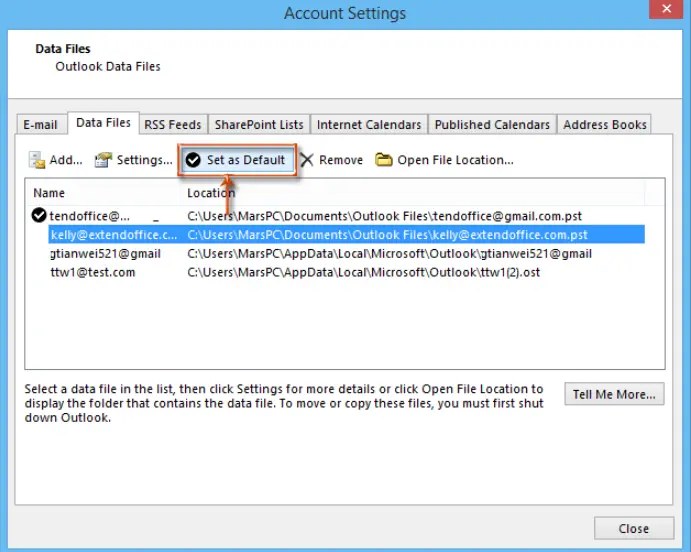
- Go to File > Account Settings > Account Settings.
- Click the Data Files tab.
- Look at the location listed and check whether the file is really there.
If you moved it, tell Outlook where it went. Click Add, browse to the PST and select it. On a POP account, go to the Email tab instead, pick the account, click Change Folder and choose the right data file.
Fix 4: Check Permissions (and move the file off OneDrive)
Outlook needs full access to its data file. Close Outlook first, then:
- Open File Explorer and paste %localappdata%\Microsoft\Outlook into the address bar. That’s where OST files usually live.
- Right-click your data file and choose Properties.
- On the General tab, make sure Read-only is unticked.
- On the Security tab, select your user name and check that Full control is allowed.
One more thing. If your PST sits in OneDrive or on a network drive, move it to a normal folder on your computer, like Documents. Microsoft advises against keeping PST files on network drives or synced folders. A dropped connection is enough to cause this exact error.
Fix 5: Run The Inbox Repair Tool
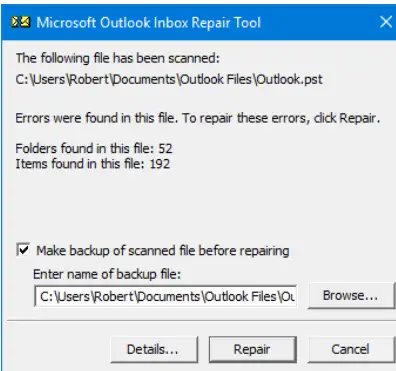
Windows ships with a repair tool called scanpst.exe. It can fix small problems inside a PST or OST file. It won’t rescue a badly damaged one, but it’s worth a try.
- Close Outlook.
- Search for scanpst.exe in File Explorer, or look in one of these folders:
- C:\Program Files\Microsoft Office\root\Office16
- C:\Program Files (x86)\Microsoft Office\root\Office16
- Double-click SCANPST.EXE.
- Click Browse and choose your data file, then click Start.
- If it finds errors, keep Make backup of scanned file before repairing ticked and click Repair.
- Open Outlook again.
Run it a couple of times if you need to. The second pass sometimes catches things the first one missed.
For additional guidance, you can refer to Microsoft’s official Outlook troubleshooting resources to investigate error 0x8004010F and related data file issues. If the problem involves a damaged PST file, consult Microsoft’s Outlook data file repair instructions before attempting further repairs.
Fix 6: Create A New Outlook Profile
Creating a new profile may fix the Outlook Data File Cannot Be Accessed error when the existing profile is damaged.
- Close Outlook.
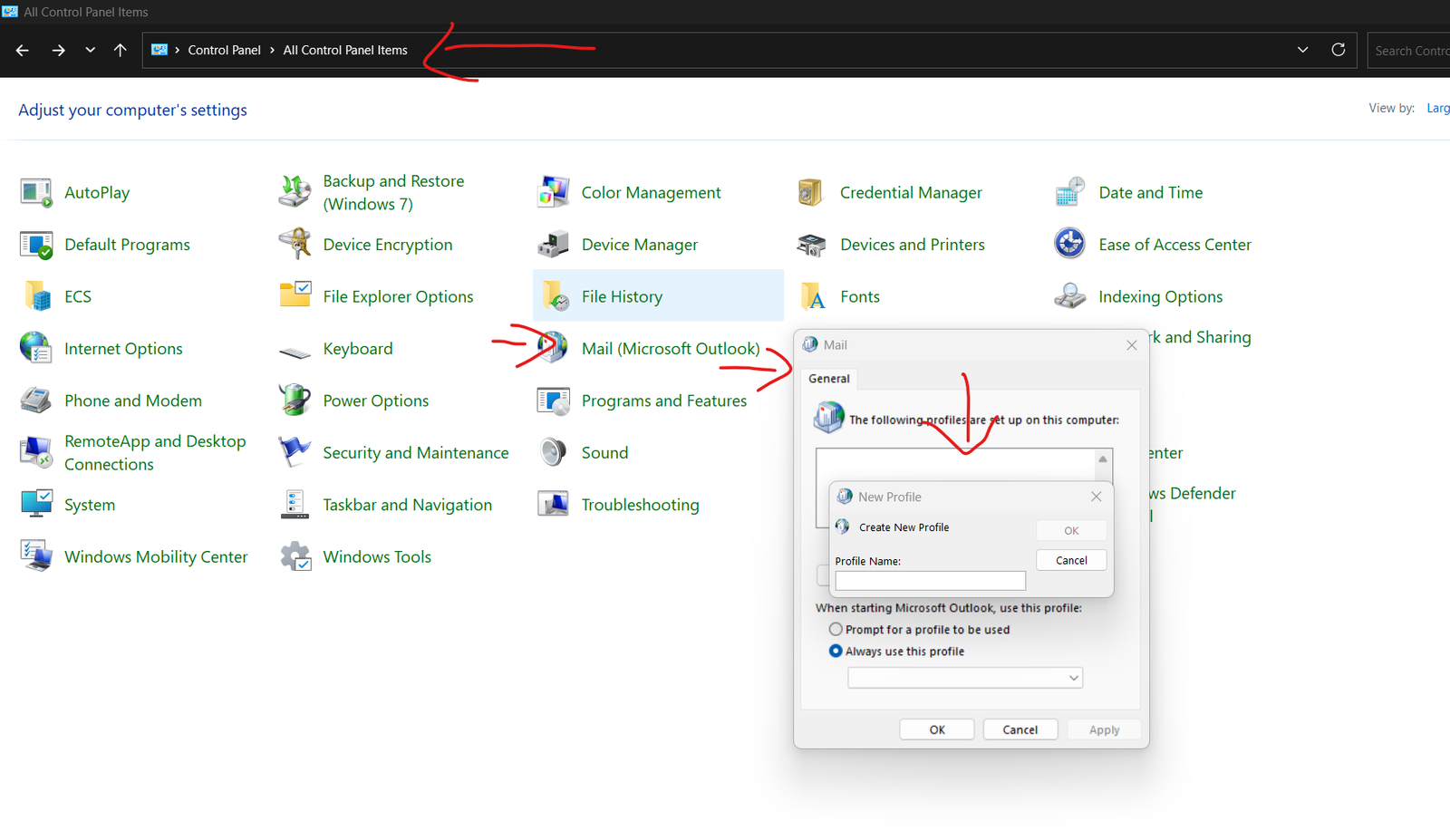
- Open the Control Panel, search for Mail, and open Mail (Microsoft Outlook).
- Click Show Profiles, then Add, and give the new profile a name.
- Enter your email address and follow the prompts.
- Back on the profiles screen, choose Always use this profile and select the new one.
- Open Outlook.
Got an old PST with saved mail? Add it back inside the new profile: File > Open & Export > Open Outlook Data File.
Fix 7: Let Outlook Rebuild The OST File
This one is only for Microsoft 365, Exchange and IMAP accounts. Because an OST is just a copy of what’s on the server, you can let Outlook make a fresh one.
- Close Outlook.
- Go to %localappdata%\Microsoft\Outlook in File Explorer.
- Rename your OST file by adding .old to the end.
- Open Outlook. It builds a new OST and downloads your mail again.
If your mailbox is big, this takes a while. Let it finish.
Never do this with a PST file. A PST can be the only copy of your email.
When it’s Time To Call For Help
Some situations aren’t worth struggling with alone: the PST holds business email and the repair tool failed, the error keeps coming back, several people in the office have it at once, the file won’t open after a move to a new computer, or you just don’t want to rename and repair files yourself. One wrong step with a data file can make things worse, and asking for help is perfectly reasonable.
If you’ve tried the fixes above and Outlook still can’t access your data file, you may need expert help. You can learn more about our Outlook PST and data file repair service or contact our support team.
How To Stop It Happening Again
Keep a backup copy of any PST you rely on, and keep it off OneDrive and network drives. Update Office and Windows now and then. Close Outlook before you shut the computer down. And try not to let one PST grow huge.
Frequently Asked Questions
1.Why does Outlook Data File Cannot Be Accessed appear?
The Outlook Data File Cannot Be Accessed error means Outlook cannot access the PST or OST file linked to your account. The file may have been moved, damaged, locked, or restricted by file permissions.
2. What is error 0x8004010F?
It’s the code that often comes with this message, usually when you send or receive mail. A damaged profile is one common cause, and a new profile often clears it.
3.Did I lose my emails?
Most likely not. They’re usually still in the file or on your email server. Copy your PST before you try any repair, just in case.
4.How do I fix a corrupted Outlook data file?
Start with the Inbox Repair tool (scanpst.exe). If that doesn’t work, create a new profile. With an OST file, you can also let Outlook rebuild it.
5.Why can’t Outlook find my data file?
Most often the file was moved, renamed or deleted, and Outlook is still pointing at the old spot. Open the Data Files tab in Account Settings to see where it’s looking.
6.What does “Outlook data file cannot be configured” mean?
It’s a close relative of this error and usually points to a problem with the profile or the file. The same fixes apply: check the location, run the repair tool, then try a new profile.
Still stuck?
If you’ve tried the steps above and Outlook still can’t access your data file, our support team can help you identify the problem and guide you through the next steps.
Comments