
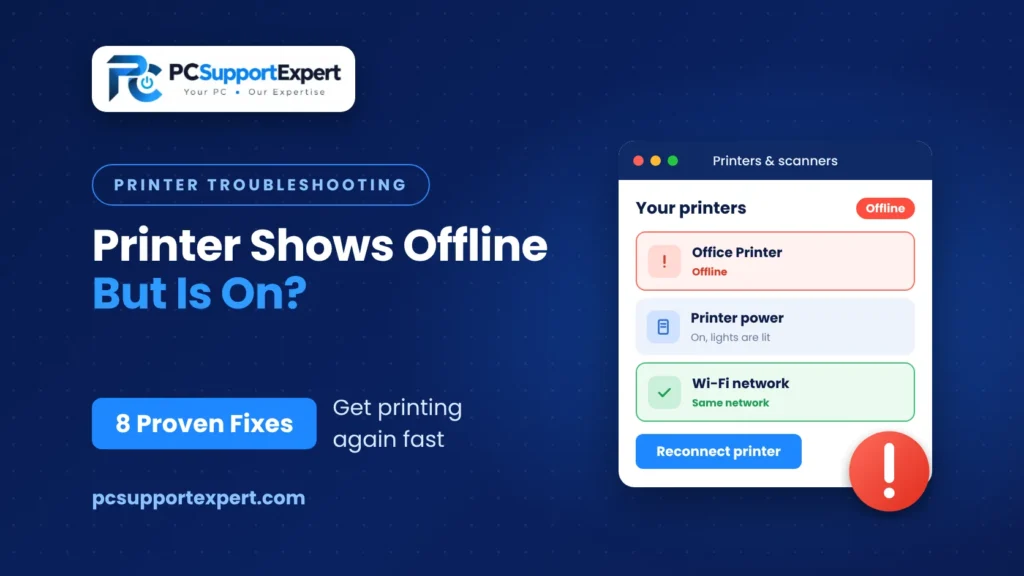
You hit Print. Nothing happens. You look over at the printer, and it’s sitting there with its lights on, wide awake, looking perfectly fine. Then you check your computer, and there it is: Offline.
Annoying, right? When your printer shows offline but is on, it feels like someone’s lying to you. But the printer isn’t lying, and it usually isn’t broken either. Your computer has simply lost touch with it. That’s the whole problem, and it’s often a quick fix. We’ve put the eight fixes below in the order we’d try them. The first two solve it more often than you’d expect, so don’t skip ahead.
Quick answer: If your printer shows offline but is on, Windows can’t reach it, or the printer got set to “work offline” by mistake. Restart the printer, your PC, and your router. Then open the print queue and check that “Use Printer Offline” isn’t ticked. Still no luck? Keep reading, there are eight fixes below.
Why a Printer Shows Offline but Is On
A little background first, because it makes the fixes easier to follow. “Offline” in Windows doesn’t mean switched off. It means Windows asked the printer “are you there?” and got no answer.
When a printer shows offline but is on, it’s almost always one of these:
- The Wi-Fi dropped, or the printer joined a different network from your PC
- The router gave the printer a new IP address, and Windows is still using the old one
- “Use Printer Offline” got ticked by accident
- One stuck print job is blocking everything behind it
- The printer is asleep, or showing an error on its own screen
- A driver that’s gone bad, often after a Windows update
- Windows quietly switched your default printer to something else
The good news is that you can fix every one of these at home.
8 Fixes When a Printer Shows Offline but Is On
Fix 1: Walk Over and Look at the Printer
Yes, really. Go and look at it, because its screen can tell you things your computer can’t. A cover that isn’t quite shut, a paper jam, an empty cartridge, a little error code. Any of those can be why your printer shows offline but is on. Clear whatever it’s complaining about.
If the screen is dark but the power light is lit, it might just be asleep. Press a button to wake it. And if you’re using a USB cable, push it in firmly at both ends, or try a different port. Loose cables cause more trouble than you’d think.
Fix 2: Restart Everything, in the Right Order
Turn the printer off and unplug it. Restart your computer. If the printer is wireless, unplug your router for about 30 seconds too, then wait until the Wi-Fi is back. Only then plug the printer in and switch it on last. Give it a couple of minutes to find the network.
We know. It sounds like the lazy fix. But it clears a lot of cases where a printer shows offline but is on, which is why it gets the second spot.
Fix 3: Make Sure Both Are on the Same Wi-Fi
Here’s a sneaky one. Your printer and your PC can both be on Wi-Fi without being on the same Wi-Fi. Maybe one of them joined the guest network. Maybe your router has separate bands. A printer on the wrong network is a classic reason a printer shows offline but is on.
Check the network name on the printer’s screen or settings menu, then compare it with the one your PC is using. If they don’t match, move the printer over. Guest networks are the usual culprit, since they often stop devices from talking to each other. One more thing: plenty of printers only work on the 2.4 GHz band, so it’s worth checking that if your router splits its bands.
Fix 4: Turn Off Use Printer Offline
This setting is easy to tick by accident, and Windows won’t tell you it’s on. Here’s where to look:
- Open Settings > Bluetooth & devices > Printers & scanners.
- Click your printer, then Open print queue.
- Click Printer in the menu at the top.
- If there’s a tick next to Use Printer Offline, click it to remove it. Do the same with Pause Printing.
Microsoft’s own guide on offline printers says to clear both of these first. So if your printer shows offline but is on, this is a good place to check early.
Fix 5: Set the Right Printer as Default
Windows likes to be helpful, and sometimes that means it quietly picks Microsoft Print to PDF as your default printer. Your real printer then stops getting jobs, and it can look offline. Go to Settings > Bluetooth & devices > Printers & scanners, scroll down to Printer preferences, and switch off Let Windows manage my default printer. Then click your printer, choose Set as default, and print a test page.
That one change fixes many cases where a printer shows offline but is on
Fix 6: Clear the Print Queue and Restart the Print Spooler
One stuck job can freeze everything behind it. The printer ends up waiting, and your PC calls that offline.
- Open the print queue like you did in Fix 4 and cancel every document in the list.
- Press Windows + R, type services.msc, and hit Enter.
- Find Print Spooler in the list, right-click it, and choose Stop.
- Open File Explorer and go to C:\Windows\System32\spool\PRINTERS. Delete everything inside that folder, but leave the folder itself.
- Back in Services, right-click Print Spooler again and choose Start.
You may need admin rights for this one. Once it’s done, try a test print.
Fed up with it? If your printer shows offline but is on even after six fixes, we can look at it with you over a remote session. Call +1-855-514-9848 or visit our Printer Services page.
Fix 7: Check the Printer’s IP Address and Port
Think of the IP address as the printer’s street address. After a router restart or a power cut, the router can hand the printer a new one. Windows keeps delivering to the old address, and gets no reply. This is the fix people miss most on wireless and network printers.
- Find the printer’s current IP address. Most printers can print a network configuration page, or show the IP on their screen under network settings.
- On your PC, open Control Panel > Devices and Printers, right-click the printer, and choose Printer properties.
- Go to the Ports tab and find the port that’s ticked. The IP address is usually in its name.
- If the numbers don’t match, click Add Port, choose Standard TCP/IP Port, and enter the right address. Then tick the new port.
- Still offline? Click Configure Port and try unticking SNMP Status Enabled.
To stop this from happening again, reserve an IP address for the printer in your router settings. Most routers can do it, but the menus are different on each one, so check your router’s guide.
Fix 8: Run the Troubleshooter and Reinstall the Driver
If nothing else has worked and the printer shows offline but is on, start with the built-in troubleshooter. Then try a fresh driver.
- Go to Settings > System > Troubleshoot > Other troubleshooters and click Run next to Printer.
- No luck? Go back to Printers & scanners, click your printer, and choose Remove.
- Download the newest driver for your exact model from the maker’s website.
- Install it, then add the printer again.
Our post on printer installation services shows what a clean setup looks like.
Does Your Printer Brand Matter?
The fixes above work on every brand, though a couple of small things are worth knowing.
HP: HP has a Windows tool called HP Print and Scan Doctor, and an HP Smart app, and both can check a printer’s connection. You’ll find the steps for your model on HP Support.
Canon, Epson, and Brother: Each maker has a driver and setup page for your exact model. Search your model number on their support site and download the newest driver from there.
Whatever you own, your model’s manual is the best guide to the printer’s own menus and Wi-Fi settings.
When a Printer Shows Offline but Is On and Needs a Pro
Done all eight and it’s still offline? Then the cause may be outside the printer. These are the ones that are hard to spot on your own:
- Your router is stopping devices from talking to each other
- A VPN or firewall on your PC is getting in the way
- The printer’s Wi-Fi hardware is starting to fail
- A recent Windows update left the driver in a bad state
At that point, a second pair of eyes saves a lot of time.
How to Avoid It the Next Time a Printer Shows Offline but Is On
A few habits go a long way. Give the printer a fixed IP address in your router, so it stops changing. Keep the printer and your PC on the same network. Update the driver after big Windows updates, since that’s when drivers like to break. And once the printer works, resist the urge to fiddle with its Wi-Fi settings.
Still Offline? Get Help
If your printer still shows offline but is on, it’s time to let someone look at it. The team at PC Support Expert can find the cause and get you printing again, often over a remote session. Call +1-855-514-9848 or visit our Printer Services page and tell us what’s going on.
FAQs
1.Why does my printer say offline when it’s on?
Because your computer can’t get an answer from it. The printer is usually fine. Most of the time it’s a dropped Wi-Fi connection, a changed IP address, or “Use Printer Offline” being ticked when it shouldn’t be.
2.How do I change my printer from offline to online?
Start with a restart. Printer first, then your computer, then your router if it’s wireless. If that doesn’t do it, open the print queue, click Printer at the top, and untick Use Printer Offline. Still stuck? The fixes above go through the rest, one at a time.
3.Why does my printer keep going offline?
Usually the connection keeps slipping. Weak Wi-Fi is one reason. A printer that goes to sleep is another. But the one people miss is the IP address, which can change every time the router restarts. Fixing the IP in your router often stops the problem for good.
4.Why does my HP, Canon, Epson, or Brother printer show offline?
Brand doesn’t change much here. It’s the same few things: the connection, the IP address, a Windows setting, or the driver. The only real difference is how the printer’s own menus look, so keep your manual close for that part.
5.Does restarting my router fix an offline printer?
It can, if the printer lost its Wi-Fi connection. Restart the printer and your PC too, in that order, so everything reconnects cleanly.
6.Can a Windows update make a printer go offline?
It can happen. After a big update, a driver sometimes stops working the way it should. Remove the printer, download the newest driver from the maker’s site, and add the printer again. That usually sorts it out.
7.How do I find my printer’s IP address?
Look in the network settings on the printer’s screen. If it doesn’t show there, print a network configuration page. The IP address will be on it.
8.Do I need a technician when my printer shows offline but is on?
Most of the time, no. Plenty of people fix it with the steps in this post. But if it keeps coming back, or you can’t figure out what’s causing it, that’s when a technician is worth calling.
Comments