
Seeing that your printer is offline can be frustrating when it is turned on and connected to your computer. Usually, this issue will appear due to a problem between your computer and printer. This can be caused by networking issues, incorrect printer settings, jammed print jobs, and outdated drivers.
There are some steps you can take to get your printer back online. This guide goes through how to get your printer from offline to online on your Windows/Mac computer.
Quick Answer: How to Get My Printer Online?
Ensure that you have turned your printer on and that it is correctly connected to your computer or Wi-Fi. Restart your printer and computer. If you’re on a Windows computer, go to Settings > Bluetooth & devices > Printers & scanners. Select your printer. Open up the print queue. Click the Printer tab and disable Use Printer Offline / Pause Printing.
If this does not resolve the issue, you can try clearing the print queue, restarting the Print Spooler service or reinstalling your printer.
Short on time? Our technicians can check your printer connection remotely and get it back online. Call +18555149848 or request a callback. PC Support Expert is an independent support provider and is not affiliated with any printer manufacturer.
What Does Printer Offline Mean?
An offline printer means that your computer is unable to communicate with your printer currently.
Your printer may be turned on, with all its lights indicating everything is working normally; however, your computer will still indicate that your printer is offline. This can occur if there is an issue with your WI-FI connection, your printer is on a different network, or your computer has incorrect printer settings.
You may find your print jobs are queuing up and not being sent to your printer. To begin printing, you need to get your computer and printer to communicate again.
Why Is My Printer Offline? Common Causes
Before attempting any solutions to fix a printer that is offline, you should consider why it may be causing your issue. Common causes include:
- Poor Wi-Fi Connection: Your wireless internet connection is causing issues and preventing your computer from connecting to your printer.
- Printer Settings Enabled: The ‘Use Printer Offline’ or ‘Pause Printing’ settings may have been accidentally turned on.
- Items stuck in Print Queue: There are items in your print queue that are preventing new items from printing.
- Out-of-date or Corrupted Drivers: Your printer drivers are out-of-date or incorrect and causing issues.
- Cable Issues: Your USB cable may not be plugged in properly, your port may be damaged or your network cable may not be connected.
- Print Spooler Issues: Your Print Spooler service (Windows) is having issues.
- Multiple Printers Installed: Your computer is trying to print to an old or incorrect printer queue.
- Changing IP Address: Your router gave the printer a new network address, so your computer is still looking for the old one.
By knowing why your printer may be offline you will know which solution to apply, rather than changing multiple settings.
Which Fix Do You Need?
Not sure where to start? Match what you see to the fix most likely to work.
| What you see | Most likely cause | Start with |
| Printer shows offline after it wakes from sleep | Printer got a new IP address | Advanced Fix 2 |
| Offline on your PC, but others can print to it | Windows status check (SNMP) | Advanced Fix 1 |
| Offline right after a router change or new Wi-Fi password | Printer still on the old network | Method 1 |
| Documents stuck as “Error” or “Printing” | Print queue or spooler | Methods 4 and 6 |
| Offline only after a Windows update | Driver or port issue | Methods 7 and 8 |
How to Get My Printer Online? 9 Methods to Try
If your printer is displaying an offline message but is turned on, you can try the following solutions:
1. Ensure Power and Connection is working
Sometimes all you need to do is check the basics to ensure your printer is connected correctly.
- Ensure your printer is turned on.
- Ensure the power cable is plugged in securely.
- If you are using a USB connection, ensure the cable is securely plugged into the printer and computer.
- If you are using a wireless connection, ensure your printer has a Wi-Fi light or network settings showing on the printer screen.
- Ensure your computer and printer are on the same Wi-Fi network.
- Check the printer screen for any error messages, paper jams or other issues.
- Try printing a test page. If your printer displays offline, try the next solution.
If your printer is not on your Wi-Fi network at all, follow our guide on how to connect your printer to Wi-Fi first.
2. Restart Your Printer And Computer
Sometimes your printer will display offline due to a temporary connection issue. Restarting your printer and computer can help.
- Turn your printer off by pressing the power button.
- Remove the power cable from the plug.
- Wait around 30 seconds.
- Plug the power cable back in and turn the printer on.
- Restart your computer.
- Allow your devices to fully boot up.
- Print something.
- This should solve any temporary connection issues.
3. Turn Off Use Printer Offline (Windows)
A common reason why your printer displays offline is that your Windows has been set to use the printer in offline mode.
To change this setting:
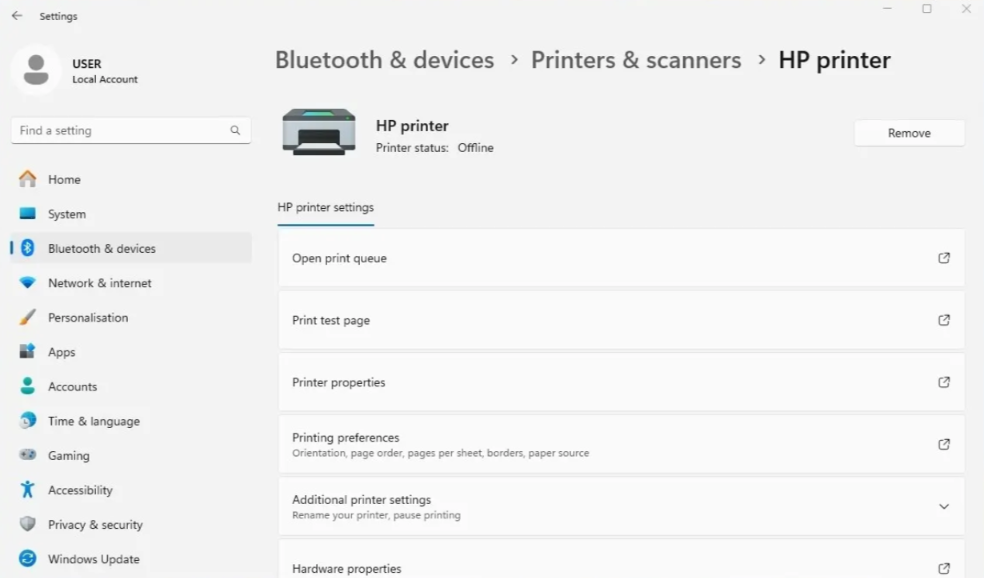
- Open Settings on your Windows device.
- Navigate to Select Bluetooth & devices.
- Then navigate to Printers & scanners.
- Select your printer.
- Click Open print queue.
- Click the Printer tab.
- Check if Use Printer Offline is ticked.
- If it is, click it to untick it.
- Ensure Pause Printing is also not ticked.
Now check your printer status. If your printer is available, print a test page.
printer showing offline on Windows 10
On Windows 10? Go to Settings > Devices > Printers & scanners instead, then follow the same steps.
4. Clear Print Queue
Sometimes your printer will get stuck on a print job which can cause it to display as offline.
- To clear your print queue:
- Open Settings on your Windows device.
- Navigate to Bluetooth & devices then Printers & scanners.
- Select your printer.
- Click Open print queue.
- Check the documents listed.
- Right-click each queued document and select Cancel.
- Once your queue is empty, try printing.
- If they won’t cancel, restart your computer and printer.
If your printer shows online but still nothing comes out, see our guide on printer connected but not printing.
5. Change Default Printer
Sometimes your computer will try to print to a different printer or old installation. To avoid this issue, change your default printer.
- Open Settings.
- Select Bluetooth & devices > Printers & scanners.
- Select your desired printer.
- If you have Let Windows manage your default printer, uncheck Let Windows manage my default printer.
- Select your preferred printer.
- Click Set as default.
Open a document and check that your desired printer is listed.
6. Restart Print Spooler
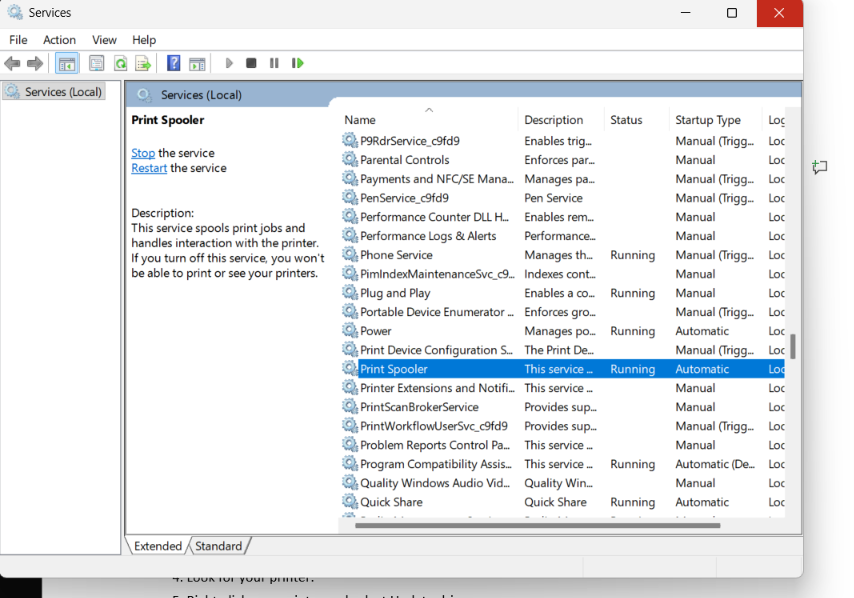
The Print Spooler is a Windows service that handles print jobs. If it stops working, your printer may show as offline or your documents may get stuck.
To restart the Print Spooler:
- Press Windows + R.
- Type services.msc.
- Click enter.
- Find the Print Spooler.
- Right-click.
- Select Restart.
- Once it has restarted, close the window and try printing.
If you don’t see a Restart option, check the status of the service. When the service is in a startable state, click Start.
7. Update or Reinstall Drivers
Drivers help your computer to communicate with your printer. If the driver you have installed is out of date, corrupt or not compatible, your printer may stop working.
To update your drivers:
- Open the start menu.
- Search for Device Manager and open it.
- Expand print queues or printers.
- Look for your printer.
- Right-click your printer and select Update driver.
- Follow the onscreen prompts.
If you cannot fix the issue, you may need to uninstall your current printer and reinstall it with the correct driver for your model and operating system.
Always ensure you download your printer software from the manufacturers official support.manufacturer’s official support website (HP, Canon, Epson, Brother).
8. Uninstall and Reinstall Printer
If your printer keeps displaying offline but is working, it could be because of an old installation or print queue.
Uninstalling and reinstalling your printer can help to create a new connection.
- Open Settings > Bluetooth & devices > Printers & scanners.
- Select your printer.
- Click Remove.
- Click yes.
- Ensure your printer is turned on and connected.
- Go back to Printers & scanners.
- Click Add device next to Add a printer or scanner.
- Wait for your printer to show.
- Select your printer and follow the prompts to set it up.
- Once installed, print a test page to check your printer is online.
9. How to Get Your Printer Online on a Mac
If you are using a Mac, you can try the following:
- Click the Apple icon.
- Select System Settings.
- Click Printers & Scanners.
- Select your printer.
- Check if it is paused or unavailable.
- Open print queue and click Resume.
- Cancel any print jobs that are preventing you from printing.
- Ensure your Mac and wireless printer are on the same network.
If it is still not responding, uninstall your printer from Printers & Scanners and reinstall it by clicking Add Printer.
Note: As a last resort, you can reset your printing system. This will uninstall any printers you have, clear any queued print jobs and any saved printer settings. You will need to set up your printers again.To do this, open Printers & Scanners, Control-click the printer list and choose Reset printing system.
Printer Keeps Going Offline? 3 Advanced Fixes
If your printer comes back online but goes offline again a few hours or days later, the cause is usually on the network side. Start with this quick check.
Quick Check: Can Your Computer Reach the Printer?
1. On the printer’s control panel, print a Network Configuration Page (often under Settings > Network or Reports). Note the IP address.
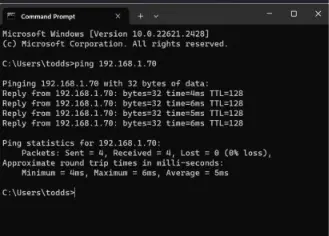
2. On Windows, open Command Prompt and type ping followed by that IP address, for example: ping 192.168.1.25
3. If you get replies, the printer is on the network and Windows is misreading its status. Go to Fix 1. If the request times out, it’s a network problem. Go to Fix 2 or Fix 3.
Fix 1: Turn Off SNMP Status on the Printer Port (Windows)
Windows checks a network printer’s status using SNMP. If the printer doesn’t answer that check, Windows may mark it offline even though it can still print.
1. Open Control Panel > Devices and Printers (or Settings > Printers & scanners > your printer > Printer properties).
2. Open the Ports tab and select Configure Port.
3. Uncheck SNMP Status Enabled, then click OK and Close.
Note: This option only appears on a Standard TCP/IP port, and you may need administrator rights. It is a workaround: your printer will print, but Windows will no longer show live status such as low ink.
Fix 2: Give Your Printer a Fixed IP Address
Most routers hand out IP addresses that can change. If your printer gets a new one after a restart, your computer keeps looking for the old one and shows the printer offline.
1. Log in to your router’s admin page and find DHCP reservation (sometimes called Address Reservation).
2. Reserve the printer’s current IP address for it.
3. On Windows 11, remove the printer, then choose Add device > Add manually > Add a printer using an IP address or hostname and enter that IP.
Fix 3: Check Your Wi-Fi Band and Network Type
Many home printers connect only on 2.4 GHz Wi-Fi. If your router or mesh system pushes devices to 5 GHz, or your laptop is on a guest network or VPN, the computer and printer can’t see each other.
- Check your printer’s manual or spec sheet for supported Wi-Fi bands.
- Make sure both devices are on the same main network, not a guest network.
- Disconnect any VPN and try printing again.
What to Do If Your Printer Is Still Offline?
In some cases, this may be caused by something a bit more complex such as a software or configuration issue.
Check any error codes on your printer and make sure the Network Settings are set up correctly and you have the right driver installed.
On Windows 11, you can also open the Get Help app and run the printer troubleshooter. See Microsoft’s printer troubleshooting guide for details.
If you’re not sure what the issue is causing the issue, don’t try changing random settings on your system. Changing the wrong settings can cause further printing issues.
Professional remote technical support can help to look into any printer connection, driver installation, print queue or other software issues that may be causing your printer to keep going offline.
Still showing offline? Let a technician fix it.
Our technicians can connect remotely, find the cause and help get your printer back online.
Call +18555149848 | Request a callback PC Support Expert is an independent, paid support service and is not affiliated with HP, Canon, Epson, Brother or any printer manufacturer.
Frequently Asked Questions
Why is my printer showing as offline?
This problem may occur if your printer is on but there is a disruption in the Wi-Fi connection between your printer and computer. Other issues that may occur are incorrect printer settings, a jammed print job, or driver issues.
How can I put my printer back online?
Click Settings on your Windows system and navigate to Bluetooth & devices and then Printers & scanners. Select your printer and open your print queue. Click on the Printer menu and make sure Use Printer Offline is not ticked.
Why does my printer keep going offline?
If your printer keeps going offline, then you may have a faulty network connection, outdated drivers, an incorrect IP address, or print queue issues. Check your printer connection and software.
How can I get my wireless printer back online?
Ensure your printer and computer are both on your Wi-Fi network. If needed, restart your router, printer and computer. Ensure your printer’s network settings are correct.
Can I get my printer back online without reinstalling?
You can attempt to fix your printer by restarting it, ensuring its network connection is working, disabling offline mode, removing any queued print jobs and restarting the Print Spooler service. However, in general, it’s worth attempting to reinstall your printer.
Comments