
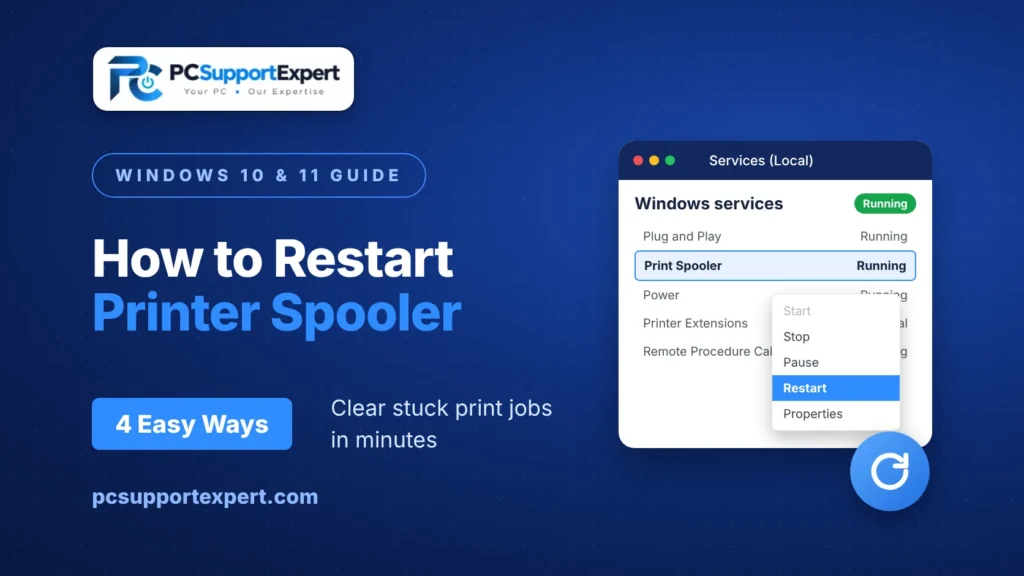
The Print Spooler service is an essential service on Windows. It helps manage the communication between you and your printer by ensuring that your print jobs are printed correctly. When it becomes unresponsive, however, you could come across some printing errors. The most common being documents getting stuck in the queue, long delays in printing or the printer becoming unresponsive.
You can restart the Print Spooler service to resolve any temporary issues. This can be done via the services, Command Prompt or PowerShell. If this does not solve any problems, you can try to clear the print queue or check the printer drivers. Below will show you how to restart your printer spooler using different methods.
Quick Answer: How to Restart Printer Spooler
Here is how to restart printer spooler in under a minute: press Windows + R, type services.msc and press Enter. Find Print Spooler, right-click it and select Restart. Or open Command Prompt as administrator and run net stop spooler followed by net start spooler. This works on both Windows 10 and Windows 11.
Printing still stuck? Our technicians can connect remotely and fix Print Spooler errors for you. Call +1-855-514-9848 or request a callback. PC Support Expert is an independent support provider and is not affiliated with Microsoft or any printer manufacturer.
What Is a Print Spooler and Why Does It Need to Be Restarted?
The Print Spooler is a default Windows service that handles printing. When you choose to print a document, it will be added to the print queue before being handled by the Print Spooler. The Print Spooler will handle communication between your computer and printer.
This enables you to carry on working whilst documents are being printed. It will also help manage multiple printing jobs.
Sometimes, however, the print spooler can fail to work properly, causing problems with printing.
Below are some common issues that can be resolved by restarting this service:
- Print Jobs Stuck: This means that your documents are stuck in the print queue and aren’t progressing.
- Printer Not Responding: Your printer will not respond to the print command from your computer.
- Print Spooler Keeps Crashing: The service will crash unexpectedly.
- Documents Won’t Print: Any new documents won’t print.
- Printing Application Freezing: Your application could freeze if you try to print.
By restarting the service, it will refresh the printing process and can help with any temporary issues with the service. It may not help resolve any issues caused by incorrect drivers, connectivity issues, or hardware errors.
If your printer shows as connected but nothing prints, see our guide on printer connected but not printing.
How To Restart Printer Spooler in Windows 10 and 11?
There are several methods to restart the Print Spooler service on your Windows machine. Below are some of the methods.
| Method | Best for | Admin rights needed? |
| 1. Services app | Most users, easiest option | Usually yes |
| 2. Command Prompt | Quick restart with two commands | Yes |
| 3. PowerShell | One-line restart, IT users | Yes |
| 4. Task Manager | When Services won’t open | Yes for restart |
Method 1: Restart Print Spooler From the Services App
One of the easiest ways to restart the Print Spooler is by using the Services app.
- Press the Windows + R keys together to bring up the Run dialog box.
- Type services.msc into the search box.
- Hit enter to open the Services app.
- Scroll down the list until you find the Print Spooler.
- Right-click.
- Select Restart.
- Wait until the service has restarted.
- Exit the Services window and attempt printing your document.
Note: If the Restart option isn’t available or the service is not running, right-click and select Start. If the service is running but having issues, right-click and select ‘Stop’ then ‘Start’.
Method 2: Restart Print Spooler From Command Prompt
Another way of restarting the Print Spooler is using the Command Prompt. If you like using the command line, this can be useful.
However, you will need to run the Command Prompt as an administrator.
- Click on the Windows Start button.
- Type Command Prompt in the search bar.
- Right-click on the application.
- Select Run as administrator.
- Click Yes if prompted by Windows.
- Type the below command into the Command Prompt and hit enter.
- net stop spooler
- Wait until you see a confirmation that the Print Spooler Service has stopped.
- Type the below command and hit enter.
- Wait for a confirmation that the service has started.
- Close the Command Prompt and try printing your document.
Note: Make sure to run each command individually. The first one is to stop the service and the second is to start it again. Do not close the Command Prompt until you have run both commands.
Method 3: Restart Print Spooler From PowerShell
Another option is to use Windows PowerShell. This allows you to manage services within your system. Here is how to use it to restart the Print Spooler.
- Click on the Start button and type PowerShell into the search bar.
- Right click on Windows PowerShell.
- Select Run as administrator.
- Click yes if prompted with the User Account Control window.
- Type the below command.
- Restart-Service –Name Spooler
- Hit enter and let the command run.
- Wait until the process has finished.
This will cause the Print Spooler service to restart. Open your document and attempt to print.
If there is an error, check you ran PowerShell as an administrator and that you typed the command correctly.
If PowerShell says the service “has dependent services”, run Restart-Service -Name Spooler -Force instead. The -Force option is explained in Microsoft’s Restart-Service documentation.
Method 4: Restart Print Spooler From Task Manager
The Task Manager will allow you to see and manage various processes and services running on your machine. This can be used to find the print spooler.
- Press the Ctrl + Shift + Esc keys to open up the Task Manager.
- Click on the Services tab. If you are in the basic Task Manager, click on ‘More details’. On Windows 11, select Services in the left sidebar.
- Find the Spooler in the list.
- Right click.
- Select Restart, if available.
- Once the service has restarted.
Try and see if your printer is now able to take print requests.
If the service does not restart, try using the Services app or Command Prompt.
How To Clear the Print Spooler Queue in Windows?
From time to time, restarting the Print Spooler will not be enough to resolve issues. If there is a corrupted or stuck print job, this can cause problems when trying to print other documents.
To resolve this issue we can manually clear the print queue. To do this follow the steps below:
Stop the Print Spooler Service
- Press the Windows Key + R to bring up the run command.
- Type in services.msc and click enter.
- Find the Print Spooler option.
- Right click and choose Stop.
Open up the Printer Spool Folder
- Press the Windows Key + R.
- Type in the following location:
- C:\Windows\System32\spool\PRINTERS
- Click Enter.
- If Windows asks for admin rights, click continue.
Delete the Print Files
- Highlight all files within the PRINTERS folder.
- Hit the delete key.
- Click yes to confirm.
These are the print jobs that have been queued up. By deleting them we are removing them.
It is important to only delete the files within the PRINTERS folder. We should not delete the PRINTERS folder or any other system files. This will remove the queued print jobs, so you may need to resubmit your documents.
- Start the Print Spooler Service
- Go back into Services.
- Find the print spooler.
- Right click.
- Choose start.
This will begin the Print Spooler and with a clean print queue. You can now resubmit your print job.
What To Do If the Print Spooler Keeps Stopping?
If you continue to have issues with your Print Spooler after restarting your computer, you may need to update your drivers, remove corrupt print files or resolve issues with your system. You can try:
- Update Drivers
Outdated drivers can be the cause of your issue. You can check to see if your printer has an updated driver.
- Right click on your start menu.
- Select Device Manager.
- Select print queues / printers.
- Right-click on your printer and select ‘Update driver’.
- Complete the prompts.
If Windows cannot find an appropriate update, check if there are any driver options for your printer.
- Removing unwanted printers
Sometimes issues can occur due to duplicate or out-of-date drivers. Removing any drivers you do not need can help.
Please do not remove any drivers your printer may need.
You can check what printers/drivers you have installed in your Windows settings. If you are unsure which driver is causing the issue, please ask for help.
- Restarting
Sometimes you can have issues with your print spooler due to temporary issues with your system or connection.
- Save your work and close any applications.
- Turn your printer off.
- Unplug your printer.
- Leave for a short time (around 30 seconds).
- Plug your printer back in and turn on.
- Restart your computer.
- Attempt to print a test document.
- This will reset your connection.
- Check Connection
If you are having issues with your connection, your computer will not be able to communicate with your printer. If you are using a wired printer, check your USB cable.
If you are using a wireless printer, make sure your printer is on the same network as your computer and that the printer is not showing as offline.
Once your connection is stable, attempt to send a print request.
- Printer Troubleshooter
Within Windows there is a troubleshooter function that can help you identify some printing issues.
Within Windows 11, you can use the Get Help application.
- Go to your Windows settings.
- Select System.
- Click on Troubleshoot.
- Click on Other troubleshooters (if available).
- Locate the printer troubleshooter and complete the prompts.
Depending on your version of Windows you may have different options available.
How To Check Whether the Print Spooler Is Working?
It is important to confirm that the service is running correctly after restarting.
This can be confirmed by opening the Services app.
- Press Windows + R
- Type services.msc and press Enter.
- Find the print spooler.
- Confirm that it is showing under the Status column.
- Ensure that it shows as running.
Under the Start type, you can also confirm that the Print Spooler will run automatically on most default Windows setups.
- Double-click on Print Spooler.
- Look for Start Type.
- Ensure that it is set to Automatic.
- If not, select Automatic from the dropdown.
- Click ‘apply’ and then ‘ok’.
Open a document and try to print. If your document prints, your print service should be working correctly.
Conclusion
A great way to troubleshoot any issues you are having with your printer is by restarting the Print Spooler. This can be done through Windows Services, Command Prompt, PowerShell or Task Manager. If problems still occur, then you can try clearing your temporary print files and checking your printer drivers and connections. By regularly checking these settings, you can easily find out what issues you are facing with your printing and get everything back to normal without making unnecessary changes to your computer.
Frequently Asked Questions (FAQs)
1. Can I restart the Print Spooler?
Yes, you can! Restarting the print spooler is a common solution to printing issues on Windows. This may affect any outstanding print jobs.
2. Will restarting the Print Spooler delete my documents?
No. When restarting the Print Spooler, your original documents will remain unchanged. If you manually delete the spool folder, then any outstanding print jobs will be deleted; they will need to be sent to print.
3. Why isn’t my print spooler working?
Your Print Spooler service may be stopping because you have incompatible or outdated printer drivers, corrupted print jobs or system-related issues. Updating your drivers and clearing any stuck print files may help.
4. How do I check if my print spooler is running?
You can open the services application by typing services. MSC into the run box. From here find the Print Spooler and make sure that the status shows as Running.
5. Can I restart the Print Spooler without rebooting my computer?
Yes, you can! By using the Windows Services, Command Prompt or PowerShell, you can restart the Print Spooler. It does not always need to be rebooted.
Comments