
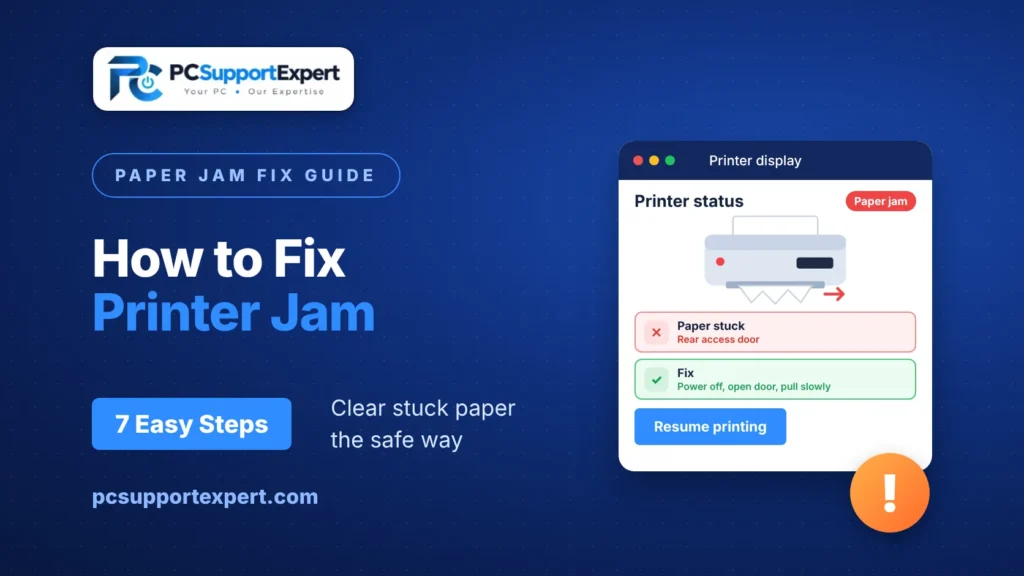
Sometimes, your printer can get jammed. If the paper has gotten stuck inside the printer, you may find that it has not printed completely. Or, if there is a paper jam error on screen, however, there may not be any obvious paper jam. A paper jam can be caused by incorrect loading of paper, torn paper, overfilling the paper tray, or issues with the paper feed rollers. However, with a few simple steps most paper jams can be resolved. This guide will show you how to clear paper jams, carefully remove paper and solve any repeating issues. It also includes tips to avoid paper jams in the future.
Quick Answer: How to Fix Printer Jam
Here is how to fix printer jam in most printers:
1. Turn off the printer and unplug it. Let a laser printer cool for a few minutes.
2. Check the printer display or manual to see where the paper is stuck.
3. Open the access door for that area (front, rear or duplex unit).
4. Pull the jammed paper out slowly with both hands, in the direction the paper travels.
5. Check for torn scraps, reload clean paper, close all covers, plug the printer back in and print a test page.
Paper torn inside or jam keeps coming back? Don’t force it. Call +1-855-514-9848 or request a callback and a technician will help you find the cause. PC Support Expert is an independent support provider and is not affiliated with HP, Canon, Epson, Brother or any printer manufacturer.
What Causes a Printer Paper Jam?
If a paper jam occurs within the printer, printing will stop and an error message will appear. To continue printing, the paper must be cleared.
Possible causes:
- The paper was loaded incorrectly – paper can become jammed if it is not placed correctly in the paper tray.
- Too many papers loaded – Too many papers in the tray can prevent the paper from feeding correctly.
- Damaged/curled paper – If the paper is folded, torn, creased or wet, it can cause a paper jam.
- Wrong paper size – If the wrong size paper is used in relation to what the printer can handle, paper jams may occur.
- Dirty/worn feeding rollers – The paper feed rollers make it easier for the paper to feed into the printer. If they are dirty or worn down, the paper may not feed correctly.
- Item within printer – Small pieces of paper, staples, paper clips and other items can cause a paper jam.
- Printer issues – If there is damage or other issues with parts of the printer, paper jams may occur regularly.
By determining what may have caused the paper jam, you can apply the correct solution to the problem, rather than having to restart the printer multiple times.
How to Fix Printer Jam by Location
| Where the jam is | What to open | Tip |
| Input tray (paper stuck going in) | Pull out the paper tray | Remove the whole stack, then pull the sheet out |
| Under the front cover / cartridge area | Front or ink cartridge door | Don’t touch the print head or ink tubes |
| Back of the printer | Rear access door | Pull the paper out towards you, not back into the printer |
| Double-sided printing unit | Duplexer (rear) | Remove the duplexer if your manual says so |
| Output tray (paper half out) | Output area | Pull gently straight out; if it resists, open the rear door |
How to Fix Printer Jam: Step-by-Step Methods
Remove the jammed paper to fix this problem. If possible, refer to what is shown on your printers display to find out where to remove the paper. As methods of clearing a paper jam can differ depending on model, refer to your users guide.
Try the following steps to resolve the issue.
1. Turn Off and Unplug the Printer
Switch off the printer and remove the power plug from the socket.
This can help avoid any danger caused by moving parts and electrical components. If the printer is a laser printer it may be necessary to allow the machine to cool down before opening it up, because some parts become extremely hot during printing.. In laser printers, the fuser (the unit that bonds toner to paper) gets especially hot, so wait before reaching near it.
Do not open any panels or put your hands into the machine if it is switched on.
2. Remove Loose Paper From the Input and Output Trays
Make sure there is no loose paper in the input tray and the output tray. Remove any loose paper.
If there is partially jammed paper, do not force the paper out. Refer to the information supplied with your printer to find the correct entry point for clearing paper jams.
Ensure that the rest of the paper has been removed from the input tray, so that it is easier to see into the paper path.
3. Open the Printer’s Access Panels
Open any of the following:
- Depending on the model of printer you are using, open the following:
- Rear panel access door
- Front ink cartridge access door
- Paper feed area
- Duplexing (double sided) printing unit
- Paper output area
Only open the covers recommended in the printer manual. To reach paper jams in some printers, you must remove the rear panel or duplexing unit. If at all possible, use a torch to help you see where the paper is. Do not touch any electrical connectors, ink hose, print head or any other delicate parts inside the printer.
4. Carefully Remove the Jammed Paper
Carefully remove the jammed paper.
Note:
- Remove the paper carefully.
- Make sure you do not pull too hard, or damage the paper.
- Do not attempt to remove paper jams with pointed objects, scissors or metal items.
- Do not force paper through the rollers.
- Check if any small pieces of paper have become trapped.
If the paper is difficult to remove, check if there is another access panel so that the paper can be removed more safely. If you force it, you may cause further paper fragments to become trapped in the device, or damage parts inside.
5. Check the Paper Tray and Rollers
Make sure that no paper damage or dirt is present in the paper tray and roller. If the rollers appear dirty, follow the manufacturer instructions to clean.
Ensure that the paper guides are set correctly. They should not be putting too much pressure on the edges of the paper.
If the rollers appear to be damaged or very worn, you may need to get the printer checked by a professional.
6. Inspect the Duplexer and Rear Paper Path
- Unjammed paper
- To help your printer print on both sides of a page, paper can get jammed in the duplexer.
- To clear paper jams in the duplexer:
- Switch off and disconnect from the power supply.
- Open the duplexer or rear panel.
- If instructed by the printer instructions, remove the duplexer.
- Look in the accessible part of the paper path for jams or ripped paper.
- Carefully clear any paper from within the paper path.
- Refit the duplexer (if removed) and ensure that the rear panel is fully closed.
Ensure that the printer component is in the correct place and switch the printer back on.
7. Reload Paper and Restart the Printer
- Place paper in the paper input tray.
- Make sure that the paper is clean, dry and not folded.
- Place a stack of paper in the paper input tray.
- Make sure you do not put in more than the maximum amount of paper.
- Adjust the paper guides to match the paper size.
- Close the front covers and attach any loose parts.
- Plug the power lead back in and switch the printer on.
Allow the printer to start up. If there are still error messages, correct the problem.
Print a test page to ensure that paper is feeding correctly.
How to Fix a Printer That Shows a Paper Jam Error but Has No Stuck Paper
If the printer shows a jam error but you can’t see any paper, the usual causes are small paper scraps, a blocked jam sensor or an error that has not reset. Turn the printer off, check the rear door and duplex unit with a flashlight, remove any scraps, then do a power reset: unplug the printer for about 60 seconds and turn it back on.
For all 7 fixes, including cleaning the rollers, checking the sensor and updating firmware, see our full guide: printer says paper jam but no paper is stuck.
Try these troubleshooting methods.
Check for Hidden Paper Pieces
Paper fragments could be stuck in the printer.
Switch off the printer and unplug it. Check for any paper in places such as the paper feed tray, at the back of the printer, the duplex unit or any other place mentioned in your user’s manual.
Shine a light into the machine. If there is any paper or debris present, remove as much as possible.
Check the Paper Sensors
The sensor may be faulty. Dirt, paper debris or a locked flag can block the sensor.
Only carry out checks on the sensor parts described in your printer’s documentation. If you need to manually manipulate any internal parts of the sensor, do so using the correct guidance.
If the sensor still has problems, ask for assistance from a qualified engineer.
Restart the Printer
Message may still be displayed
Ensure all covers are open and that there is no paper in the paper path. For some printers, you will also need to open and then close the following cover to clear the problem.
Perform the appropriate reset procedure for your printer.
Check the Print Queue
Ensure there are no paused print jobs.
Windows
- Click on the settings button.
- Select Bluetooth & devices.
- Select Printers & Scanners.
- Click on your printer.
- Click on print queue.
If print jobs are stuck in the queue after clearing a jam, restarting the Print Spooler usually clears them.
How to Fix Repeated Paper Jams in a Printer
The problem may be due to the type of paper used, paper feeding problems or other internal mechanical problems.
Here are some ways to troubleshoot recurring paper jams.
1. Use the Correct Paper Type
Use the correct paper. If you try to print on very thick or very thin paper, or if you do not use suitable paper for your printing settings, paper feeding problems may occur.
Use a paper type and size appropriate for your print job.
2. Avoid Overloading the Paper Tray
Too many sheets can cause feeding problems.
Check that you are not exceeding the paper capacity as recommended in the printer user manual. Ensure a stack of paper is evenly aligned. Do not mix different paper sizes in the same stack.
3. Store Paper Properly
Moisture can be absorbed by the paper, causing the sheets to buckle, stick and feed incorrectly.
Store the print paper in its original packaging or in a clean dry place. Do not use any obviously damaged or damp sheets of paper.
4. Clean the Paper Feed Rollers
Dirt and dust can build up on the rollers, which affects how well they move the paper.
To clean any exposed rollers in your printer, follow the guidance in your printer’s documentation. Don’t use too much water and don’t use domestic cleaning products.
5. Check for Worn or Damaged Components
Check for visible damage.
There could be wear and damage within the feed rollers, feed guides and paper path. If unsure of how to take the printer apart, do not attempt to do so.
How to Prevent Paper Jams in the Future
Here are some of the pointers that will help you avoid paper jams.
Correct paper inserted
Make sure that paper has been correctly positioned in the paper cassette and that the paper guides are set.
Correct paper type
Ensure that the correct paper has been used. Please refer to paper size/weight/type required.
Incorrect paper type
Do not insert torn, folded, bent or damp paper into the printer.
Cleaning
Ensure that dirt and paper waste has been removed from accessible areas of the printer regularly. Please refer to the users manual for more information.
Do not over-fill
Ensure that the paper cassette is not overfilled with paper. Do not exceed the quantity given in the specifications.
Avoid the wrong items
Avoid putting incorrect items (staples, paper clips etc.) in the paper input/output trays.
Regular maintenance
Ensure regular maintenance is performed as per manufacturers specifications. Where possible visually check areas of the printer that can be accessed. This can help prevent paper feeding problems.
For model-specific jam steps and maintenance guides, search your printer model on HP Support, Canon USA Support, Epson Support or Brother Support.
When Should You Seek Professional Printer Support?
If the paper jam cannot be resolved by the steps above , technical assistance may be required.
You may need to seek technical support if:
- The paper has become jammed in inaccessible areas.
- There is repeated ripping of paper.
- A paper jam has occurred despite checking the paper path.
- The feed rollers are damaged or the paper is not feeding properly.
- There are unusual grinding/locking sounds.
- There is frequent jamming of paper despite correct loading and regular cleaning of the paper.
Do not attempt to manually open or dismantle components in the printer. A technician can check the paper feed mechanism, sensors, rollers and other parts of the printer to determine why this fault is occurring.
If you are unable to find the cause of this problem, it may be a good idea to get assistance from the PC Support Expert. This means you can find out whether there is a paper feeding issue, printer settings issue or a hardware issue inside the printer.
Conclusion
Clear any paper jams. If paper jams occur regularly then it could indicate that components are worn, faulty or damaged. Follow the advice in your printers manual, do not forcefully remove paper from a paper jam, and make sure the printer is regularly serviced. If issues occur which cannot be resolved by these methods, you may want to contact a professional service to identify the cause of the issue.
Frequently Asked Questions
Why is paper jamming?
Paper may be jamming due to incorrect loading, overfilling, damaged paper, dirty rollers or mechanical issues. Check for the cause within the paper path by using the correct paper.
Can I clear paper jams from the front of the printer?
Depending on the printer model, paper jams may need to be cleared from the back of the printer, either from the duplex unit or access panel. To avoid causing damage, follow the manufacturer’s instructions.
Why am I getting paper jam messages even though there is no paper in?
You may be receiving a paper jam message due to there being small pieces of paper inside the printer, an obstructed paper sensor, or the error message not being reset correctly. Check visible areas for any paper and turn the printer off and then on again, following the instructions provided with the printer.
Can dirty rollers cause paper jams?
Yes. If there are dust or paper build-ups on the rollers, it may make it difficult to feed paper correctly. To resolve this issue, clean any accessible rollers with the cleaning method indicated in your printer’s user guide.
How can I avoid paper jams?
Use correct paper, arrange the paper correctly within the tray, and adjust the paper guides. Do not overfill the paper tray. Keep paper in dry conditions. Regularly clean the printer following the maintenance instructions provided with the printer.
Comments